Draft Documentation
This page is currently under development. Content may be incomplete or subject to change.
Views and Viewpoints: Dynamic Filtering in SysGit#
Overview#
SysGit's Views and Viewpoints capability enables teams to create persistent, dynamic filters on model elements using SysML v2 metadata and filter expressions. This feature addresses a fundamental challenge in complex systems engineering: different stakeholders need different perspectives on the same underlying model. Rather than creating static copies or reports that quickly become outdated, Views remain synchronized with the model and automatically reflect changes as requirements, parts, and other elements evolve.
Views are particularly valuable in multi-team environments where program managers need approval status visibility, systems engineers need subsystem-specific views, or quality teams need to track verification-related elements. Each View defines filter criteria using SysML v2 expressions that can reference metadata attributes, element types, or any combination of model properties.
Understanding the View Mechanism#
Metadata Definitions as Filter Criteria#
The foundation of SysGit's View filtering lies in custom metadata definitions. Metadata in SysML v2 provides a standardized way to annotate model elements with structured information beyond the base language specification. For View filtering, teams define metadata definitions that capture workflow-relevant attributes such as approval status, responsibility assignments, maturity levels, or any domain-specific classification.
In the example shown, an Approval metadata definition establishes three attributes: approved (Boolean), approver (String), and level (Natural number). This metadata can then be applied to any requirement, part, or other model element using the @Approval annotation syntax. The metadata becomes queryable through View filter expressions, enabling dynamic selection of elements based on their annotation values.
View Definition Syntax#
Views are defined using three key components: a name that appears in the UI, one or more expose statements that specify the scope of elements to consider, and a filter expression that determines which elements to display. Each expose statement names a model element and says how much of it to bring in, for example PackageName::** for a package and everything nested inside it. The filter expression then narrows that set with type checks and metadata queries combined using logical operators. The forms an expose statement can take are described in Choosing What a View Exposes.
Filter expressions in SysGit support standard comparison operators (==, !=, >, <), logical operators (and, or, not), and metadata attribute access through dot notation. The @SysML::RequirementUsage type check ensures only requirements are selected, while metadata attribute checks like @Approval and Approval::approved verify both that the metadata exists and that specific attribute values match criteria.
Choosing What a View Exposes#
An expose statement follows the SysML v2 import syntax. The element it names is resolved from the View's own location in the model, in the same way as any other reference, so a name that is not visible from the View exposes nothing. SysGit marks such a statement with a warning in the code editor.
The suffix after the element's name controls how much of it the View brings in. The four forms differ in two ways: whether nested elements are included, and whether the named element itself is shown.
| Expose statement | What the View brings in |
|---|---|
expose drone; |
The drone element only. |
expose drone::**; |
drone and everything nested inside it, at any depth. |
expose drone::*; |
The direct members of drone, one level down, without drone itself. |
expose drone::*::**; |
Everything nested inside drone, at any depth, without drone itself. |
For the model below, the four forms bring in different sets of parts.
part drone {
    part battery { part cell; }
    part radio;
}
| Expose statement | Parts brought in |
|---|---|
expose drone; |
drone |
expose drone::**; |
drone, battery, cell, radio |
expose drone::*; |
battery, radio |
expose drone::*::**; |
battery, cell, radio |
The difference between drone::** and drone::*::** matters most on diagrams. The first draws drone as a container with its parts inside. The second draws the parts without the enclosing drone.
Exposing Individual Elements#
To show a hand-picked set of elements, write one expose statement per element. A View's expose statements combine, so the View below shows exactly the battery and the radio. Nested elements are named with :: at every level.
view PowerAndComms {
    expose DroneStructure::drone::battery;
    expose DroneStructure::drone::radio;
}
Filtering an Expose Statement#
An expose statement can carry its own filter in square brackets. The filter applies only to the elements that statement brings in, whereas a View's filter statement applies to everything the View exposes. The View below shows every part in the Drone package that carries the Safety metadata.
view SafetyCriticalParts {
    expose Drone::**[@SysML::PartUsage and @Safety];
}
Creating Views for Requirements Management#
Setting Up Custom Metadata#
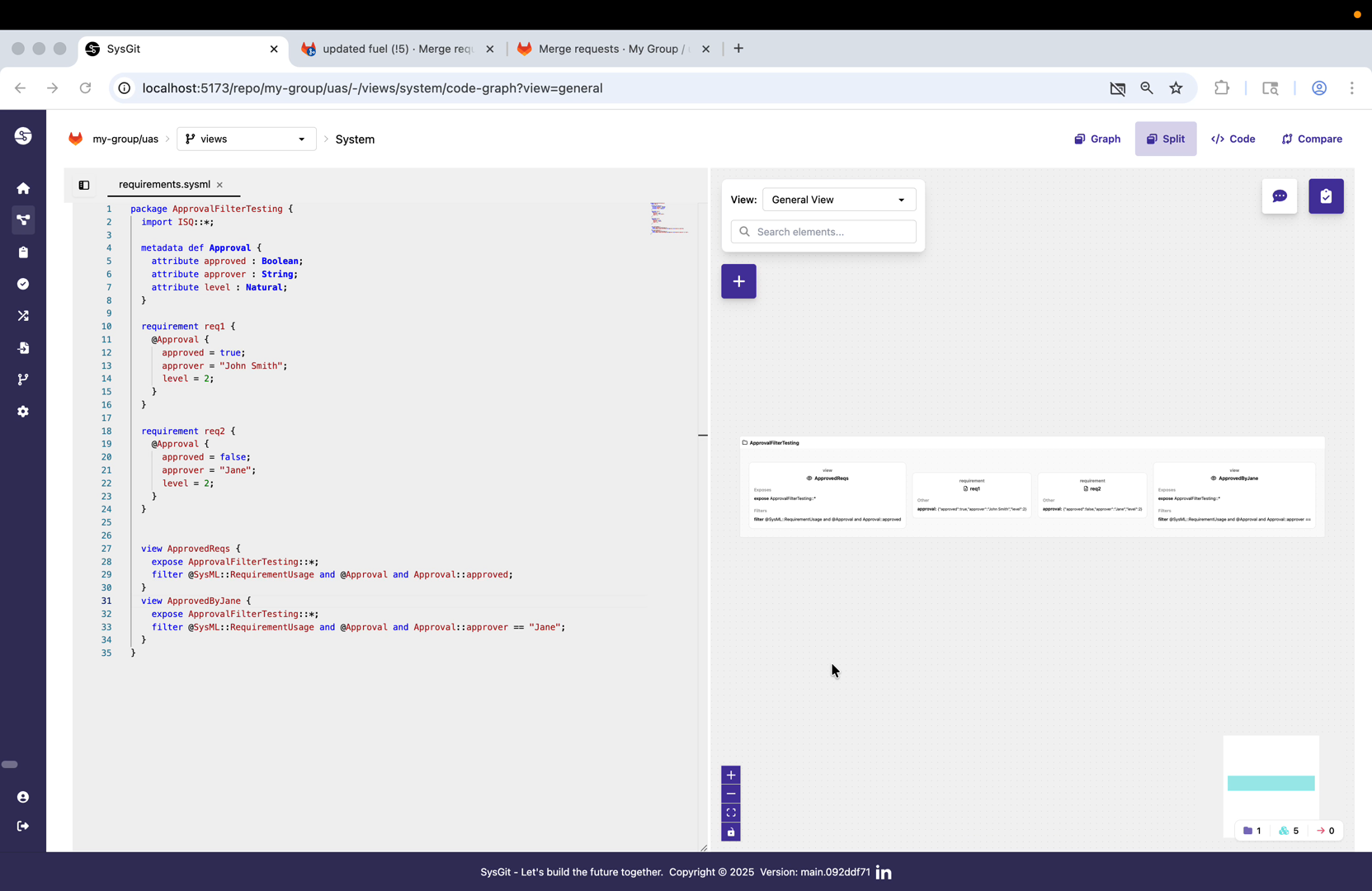
The demonstration begins with a complete SysML v2 model that defines both the metadata structure and the requirements that will be filtered. At the top of the model (lines 4-8), the Approval metadata definition establishes the approval workflow schema with three attributes. The Boolean approved flag indicates whether a requirement has been approved, the String approver captures the responsible individual's name, and the Natural number level can represent approval hierarchy or authority level.
This metadata definition follows SysML v2's attribute definition syntax, specifying both the attribute name and its type. The types used (Boolean, String, Natural) come from standard SysML v2 libraries and provide type safety when metadata is applied to model elements. Once defined, this metadata becomes available for annotation throughout the model and for querying in View filter expressions.
Applying Metadata to Requirements#
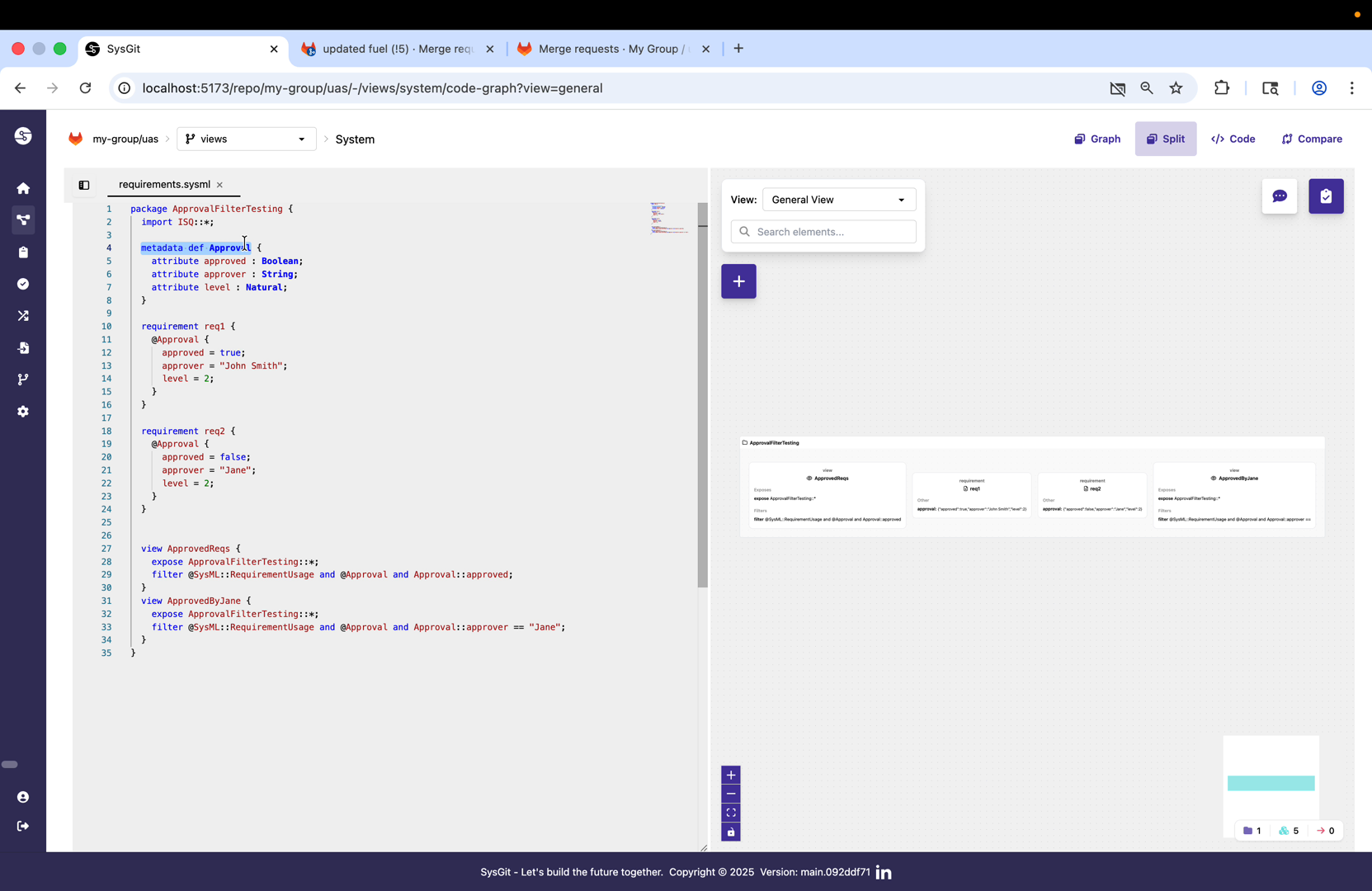
Two requirements demonstrate metadata application with different approval states. Requirement req1 (lines 10-16) includes an @Approval annotation block that sets approved = true, assigns approver = "John Smith", and establishes level = 2. The annotation syntax uses attribute assignment within curly braces, matching the structure defined in the metadata definition.
Requirement req2 (lines 18-23) shows a contrasting approval state with approved = false and approver = "Jane", also at level = 2. This variation in metadata values enables the filtering demonstrated in the Views. The metadata application occurs within the requirement definition itself, ensuring that approval status travels with the requirement through version control and model exchanges.
Defining Approval Status Views#
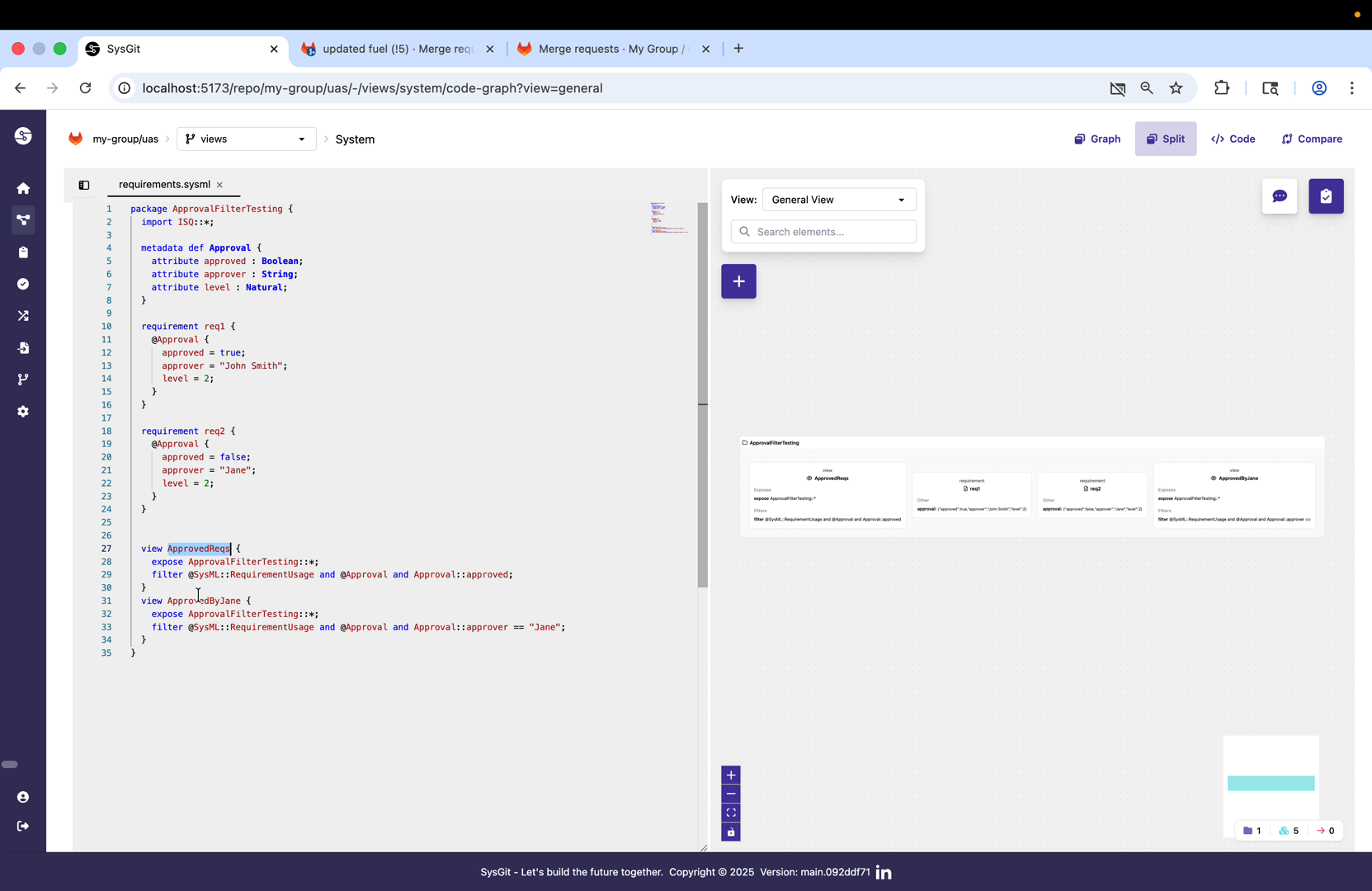
The first View, ApprovedReqs (lines 27-30), demonstrates filtering by approval status. The expose statement expose ApprovalFilterTesting::*; brings in the direct members of the package, which here are the two requirements. If the requirements were organized into sub-packages, the View would use expose ApprovalFilterTesting::**; instead to reach them. The filter expression combines three conditions: @SysML::RequirementUsage restricts to requirements only, @Approval ensures the metadata exists on the element, and Approval::approved checks that the approved attribute value is true (which in SysML v2 Boolean logic means the attribute evaluates to true).
This filter will dynamically select only those requirements that have been marked as approved, regardless of who approved them or at what level. As requirements move through the approval workflow and their metadata is updated, this View automatically adjusts its contents without requiring manual intervention or View redefinition.
Defining Approver-Specific Views#
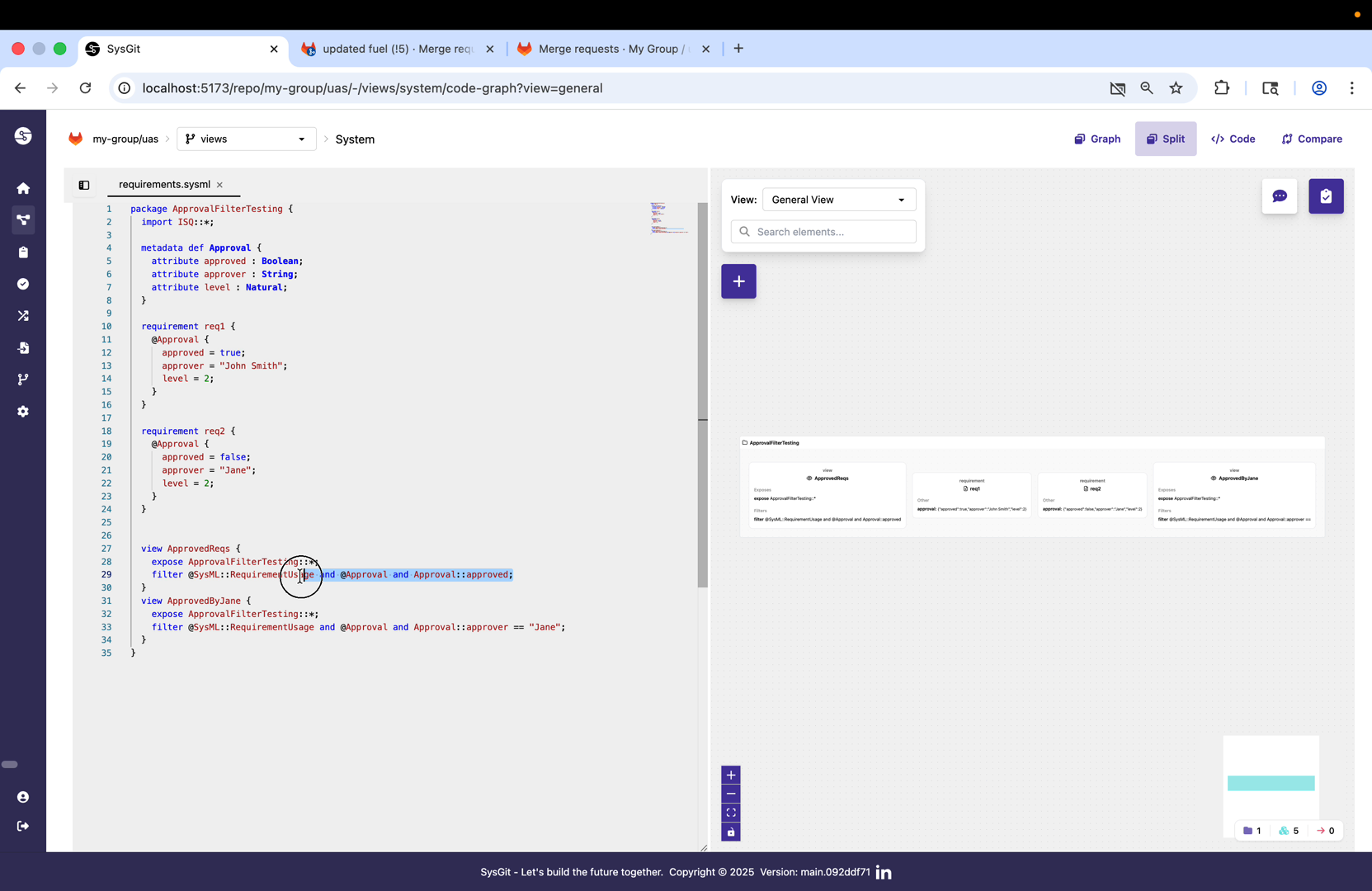
The second View, ApprovedByJane (lines 31-34), shows more sophisticated filtering based on metadata attribute values. The filter expression @SysML::RequirementUsage and @Approval and Approval::approver == "Jane" performs a string equality check on the approver attribute. This demonstrates how Views can filter on any metadata attribute, not just Boolean flags, enabling precise stakeholder-specific perspectives.
This pattern extends naturally to more complex scenarios. Teams could create Views for specific approval levels (Approval::level >= 2), combine multiple criteria (Approval::approved and Approval::level > 1), or filter on any combination of metadata attributes and element properties that support their workflow requirements.
Applying Views in the User Interface#
Accessing the View Selector#
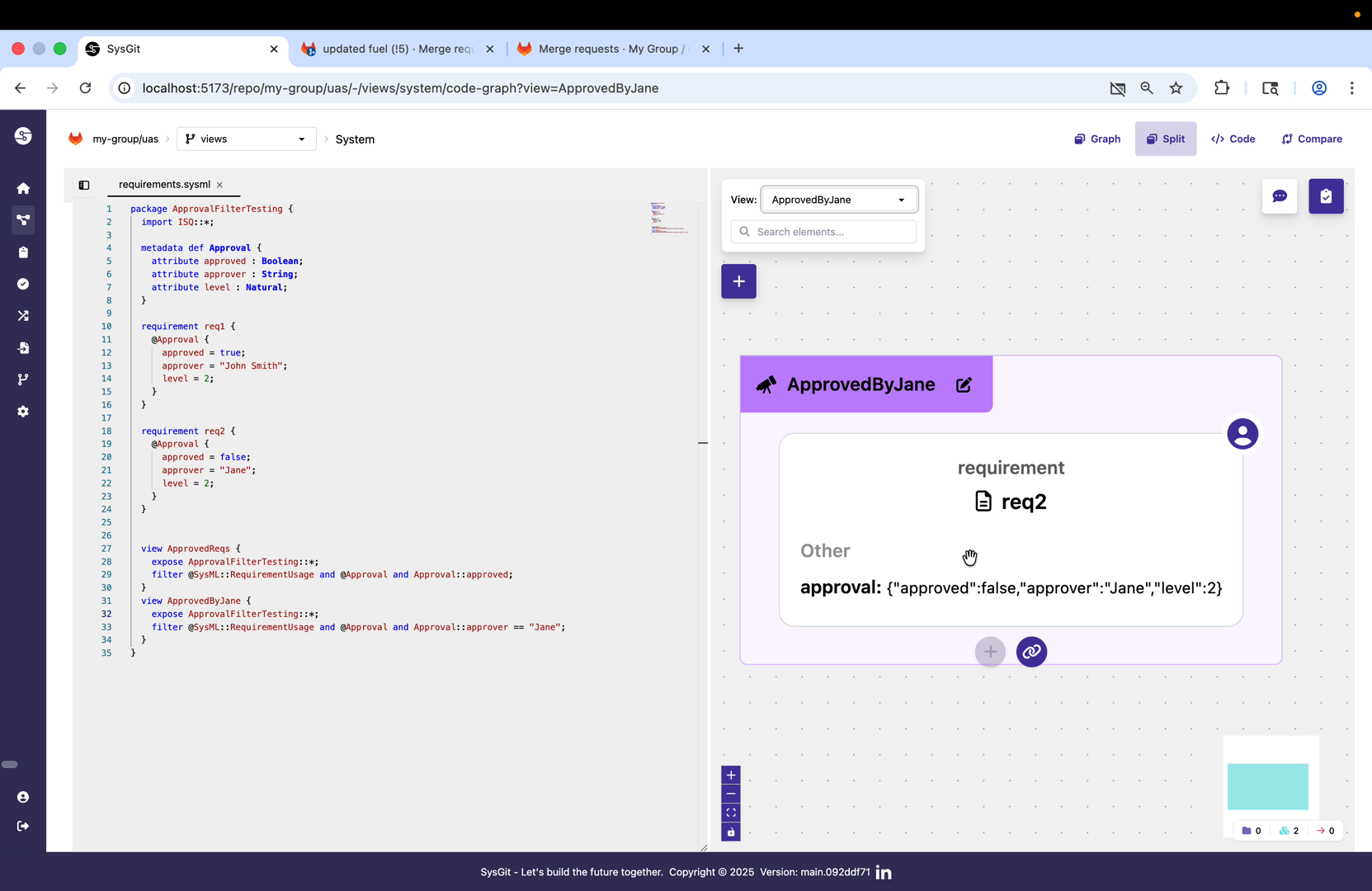
The View selector appears in the upper right section of the SysGit interface, displaying as a dropdown menu labeled "View:" with the currently selected view name. In the default state, the selector shows "General View" which presents all elements without filtering. The presence of custom Views defined in the model causes them to appear as selectable options in this dropdown.
Once Views are defined in SysML v2, they automatically populate the View selector without requiring separate configuration or tool-specific metadata. This direct connection between model definition and UI behavior ensures that Views remain synchronized with the model and can be version controlled, branched, and merged using standard Git workflows along with the rest of the engineering artifacts.
Viewing Filtered Results#
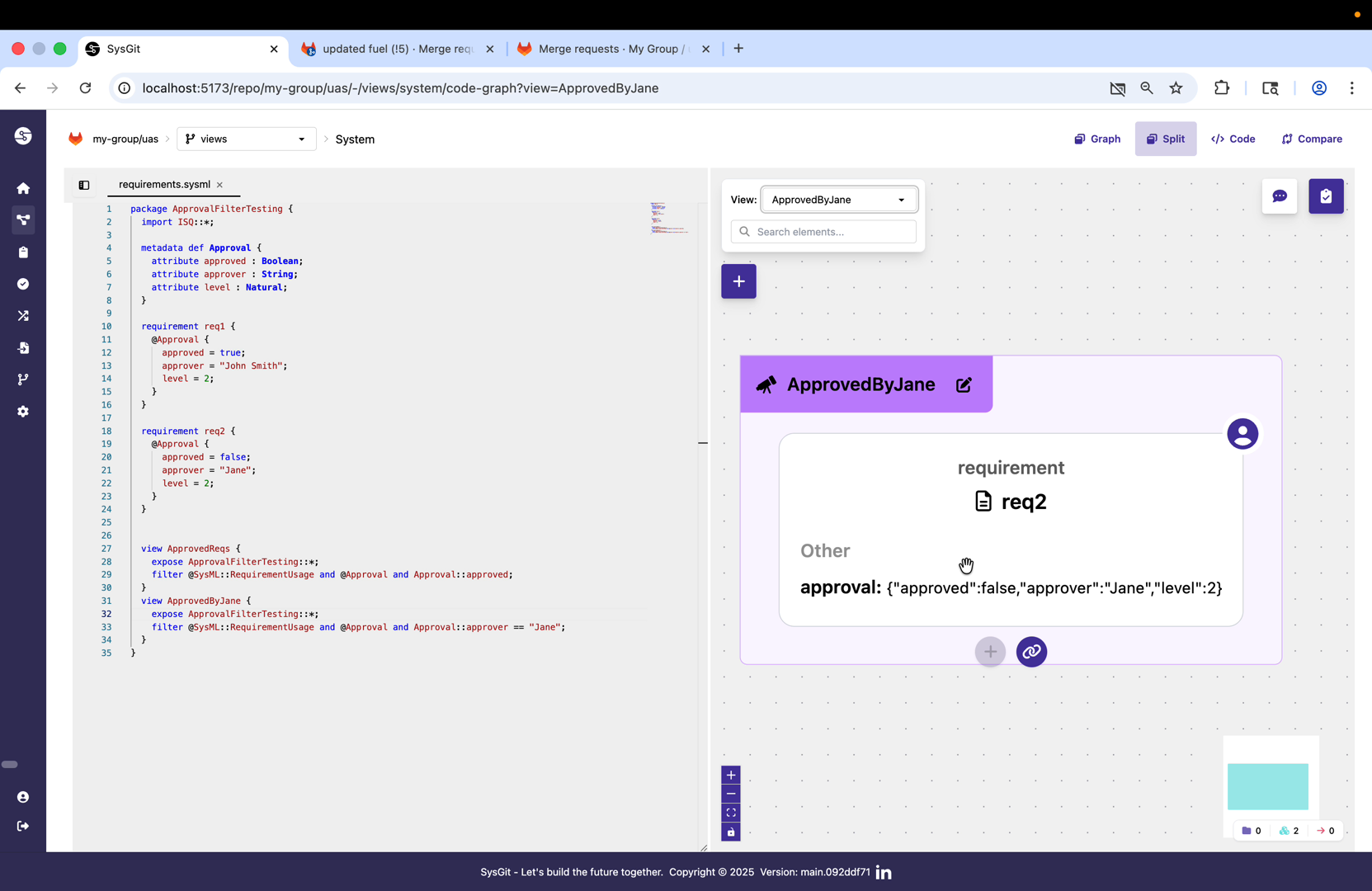
When the ApprovedByJane View is selected, the interface updates to display only req2, which matches the filter criteria. The graph view on the right adjusts to show the filtered element prominently, while the card detail on the right displays the full requirement content. Under the "Other" section, the metadata annotation values are visible: {"approved":false,"approver":"Jane","level":2}, confirming why this requirement appeared in the Jane-specific view.
The URL in the browser also updates to reflect the active View: view=ApprovedByJane. This enables direct linking to specific Views, supporting use cases where program managers or stakeholders need bookmarkable access to particular perspectives on the model. The filtered view maintains full interactivity—users can still edit requirements, modify metadata, and perform all standard operations, with the understanding that changes to metadata values may cause elements to move in or out of the current View.
Creating and Editing Views#
Views can be created and edited without writing SysML by hand. Every change made in the editor is written back to the model as ordinary SysML text, so it can be reviewed, committed and merged like any other change.
The graph toolbar offers two entry points. The New view button (the plus icon) opens an empty editor, where a diagram type such as Interconnection View or State Transition View can be chosen as a starting point. The Edit view button (the pencil icon) opens the editor for the View currently selected. A custom View can also be edited from the pencil icon in the header of its container on the graph, which opens the same settings in the element panel on the right. Both surfaces show the same fields and write the same SysML.
The editor contains the following fields:
- Render as sets the diagram style the View uses, such as an interconnection diagram or a state diagram. Styles that SysGit does not yet render are listed but cannot be selected.
- Expose lists the View's expose statements, one per row. Each row shows the element's type icon and a shortened path, with the full name shown on hover. The scope button on each row chooses between the four forms described in Choosing What a View Exposes, and shows the suffix it writes. The funnel button adds a filter to that row. Elements with nothing nested inside them show "only", because every form brings in the same thing for them.
- Objects and Tags set the View's
filterstatement, by element type and by tag.
Elements can be added to the Expose list in two ways. Typing in the Add element search box lists matching elements from the whole model. Alternatively, the Pick from model button turns the model navigator on the left into a checklist for the View. Ticking an element adds it, and unticking removes it. Elements already included through an expose statement above them appear ticked and greyed. When an element is added, SysGit includes its contents if it has any, and adds it on its own if it does not. The form can be changed afterwards from the row's scope button.
Changes in the editor are not written to the model until Save (or Create view, for a new View) is selected. Picking from the model navigator only changes the editor's contents, so closing the editor without saving discards the picks.
View Persistence and Dynamic Updates#
Model Evolution and View Synchronization#
Views remain synchronized with model content automatically as the system evolves. When a requirement's approval status changes from approved = false to approved = true, it immediately becomes visible in the ApprovedReqs View without requiring View regeneration. Similarly, if the approver name is changed from "Jane" to "John Smith", the requirement moves from the ApprovedByJane View to a hypothetical ApprovedByJohn View.
This dynamic behavior stems from the View evaluation mechanism. Rather than storing static lists of elements, Views store filter expressions that are evaluated each time the View is accessed. The evaluation operates on the current model state, ensuring that Views always reflect up-to-date information regardless of when or how model elements have been modified.
Views in Collaborative Workflows#
In Git-based collaborative environments, Views provide particular value for distributed teams. When a systems engineer on one continent approves a requirement by updating its metadata, a program manager on another continent sees that requirement appear in the approved-requirements View the next time they pull the latest model state from Git. The View definition itself travels through Git as part of the SysML v2 model, ensuring consistent filtering logic across all team members.
Views also support branching workflows naturally. Different feature branches can experiment with different View definitions or different filtering criteria, and when branches are merged, Git's standard conflict resolution applies to View definitions just as it does to requirements or parts. This enables teams to evolve their View structures alongside their models without requiring separate tool configuration or manual synchronization.
Advanced Filtering Patterns#
Combining Multiple Metadata Types#
While the demonstration shows single-metadata filtering, production systems often combine multiple metadata types in a single View. A verification-focused View might filter using both approval status and verification method: @SysML::RequirementUsage and @Approval and Approval::approved and @VerificationMethod and VerificationMethod::method == "test". This would show only approved requirements that require physical testing, useful for test planning and resource allocation.
Multiple metadata definitions can coexist on a single element, and Views can reference any subset of them. This enables sophisticated filtering logic without cluttering individual elements with redundant annotations. Teams define the metadata definitions that match their workflow needs, apply them selectively to elements, and create Views that surface the right information for each stakeholder role.
Hierarchical and Relationship Filtering#
Views can also filter based on element relationships and hierarchy, though the demonstration focuses on metadata-based filtering. A subsystem-focused View can use containment directly through its expose statement: expose Vehicle::propulsion::**; shows only the propulsion subsystem and the parts within it, and adding render asInterconnectionDiagram; draws their connections. Similarly, Views could filter requirements based on satisfaction relationships, showing requirements satisfied by specific parts or subsystems.
The combination of metadata filtering, type filtering, and relationship filtering provides comprehensive control over what information each stakeholder sees. A supplier organization might see a View filtered to show only interface requirements and the parts they are responsible for delivering, while an integration team might see a View showing all parts with unresolved interface conflicts.
Practical Applications for Enterprise Systems Engineering#
Program Management Dashboards#
Program managers benefit from Views that aggregate approval status across entire programs. Rather than manually tracking spreadsheet-based approval records, managers access Views showing requirements by approval state, enabling data-driven decisions about program readiness. Combined with SysGit's Git integration, approval history is fully auditable through Git commit history, showing who approved what and when.
Views for program management often filter by multiple dimensions simultaneously. A program manager might access a View showing high-risk, unapproved requirements at approval level 3 or higher, enabling focused attention on critical approval bottlenecks. These Views update in real time as systems engineers complete their work, eliminating the lag and errors inherent in status report generation.
Subsystem-Specific Engineering Views#
Large aerospace and defense programs involve dozens of engineering teams working on different subsystems. Rather than each team maintaining separate requirement documents or model excerpts, Views enable subsystem-specific perspectives on a unified model. A propulsion team View filters requirements related to propulsion components, while an avionics View shows only avionics-related elements.
This approach eliminates the synchronization problems that plague traditional document-based requirements management. When a system-level requirement changes, all subsystem Views reflect the change immediately. When a subsystem engineer derives new requirements from system-level requirements, those new requirements appear in the appropriate subsystem Views without manual propagation or document reissue.
Verification and Validation Workflows#
Quality and verification teams use Views to track verification coverage and status. A View might show all requirements with verification method "test" that lack associated test results, highlighting verification gaps. Another View might show requirements with failed verification results, enabling rapid identification and resolution of compliance issues.
Combined with SysGit's verification modeling capabilities (covered in separate documentation), Views provide end-to-end visibility into verification and validation workflows. Test engineers see the requirements they need to verify, program managers see verification status rollups, and certification authorities see compliance evidence, all from different Views of the same unified model.
Implementation Guidelines#
Establishing Metadata Definitions#
When implementing Views for your organization, start by identifying the workflow-relevant attributes that stakeholders need to filter on. Approval status and responsibility assignment are common starting points, but domain-specific attributes often provide the most value. An automotive organization might need safety integrity level (ASIL) attributes, while an aerospace organization might need criticality classifications.
Define metadata definitions at the appropriate scope in your model hierarchy. Package-level metadata definitions make the metadata available throughout that package and any nested packages. Standard libraries can define commonly-used metadata definitions, promoting consistency across programs and enabling cross-program views and reporting.
Designing View Hierarchies#
Views work best when organized hierarchically from general to specific. Start with broad Views like "All Requirements" or "All Approved Items", then create increasingly specific Views like "Approved Requirements at Level 2" or "High-Risk Test Requirements". This progression helps stakeholders navigate from overview to detail without overwhelming them with too many View options.
Document the purpose and intended audience for each View, either in model comments or in separate guidance materials. Views named clearly and documented well reduce onboarding time for new team members and minimize confusion about which View supports which workflow need.
Maintaining Filter Expression Performance#
While filter expressions in SysGit evaluate efficiently, overly complex expressions with many logical operators can impact performance on very large models. Test View performance with representative model sizes during implementation, and simplify expressions if evaluation becomes slow. Often, moving some filtering logic from View expressions into metadata attribute values (for example, computing a derived Boolean attribute rather than expressing complex logic in the filter) improves both performance and clarity.
Views and Git-Based Workflows#
Version Control for View Definitions#
View definitions are first-class model elements, subject to the same version control, branching, and merging as requirements, parts, and verifications. When a team experiments with new View filtering logic on a feature branch, those experimental Views remain isolated from the main branch until merged. This enables safe experimentation with stakeholder perspectives without disrupting ongoing work.
Git history for View definitions provides audit trails showing how filtering logic evolved over time. When stakeholders question why certain elements appear or disappear from Views, the Git history reveals the filter expression changes that caused the behavior shift, supporting transparent and traceable workflow management.
Cross-Repository View Considerations#
In multi-repository architectures using Git submodules or similar mechanisms, Views defined in one repository can filter elements imported from other repositories, provided the metadata definitions are accessible across repository boundaries. This enables enterprise-wide Views that aggregate information from multiple program repositories, supporting portfolio management and cross-program dependencies.
Coordinate metadata definitions across repositories carefully to ensure consistency. Establishing standard metadata libraries in dedicated repositories that multiple programs import prevents metadata definition drift and ensures that Views work consistently across the enterprise.